
| Mobile layout | Stacked Carousel |
| Max column width | Full width Custom (250 - 750px) |
| Space between | Global Custom |
| Statistic type | Number Text |
| Prefix | Add static text or symbols before the number. |
| Statistic number | |
| Suffix | Add static text or symbols after the number. |
| Subheading | Add text below the statistic |
| Text | Add text below the subheading |
| Icon | |
| Use custom icon | |
| Color scheme | Default Text Soft Color scheme 1 color scheme 2 Overlay Overlay soft |
| Color scheme | Override color scheme with custom Frame and Icon colors. |
| Alignment | Left / Center / Right |
| Mobile alignment | Left / Center / Right |
| Statistic font | Heading Body |
| Statistic text size | 20 - 100px |
| Mobile statistic text size | 20 - 100px |
| Subheading font | Heading Body |
| Subheading size | 1 - 6 |
| Text size | 1 - 6 |
| Statistic thousands separator | None Comma Space |
| Text color | Use section Custom |
| Custom statistic | |
| Custom heading |
| Enable counting animation | |
| Duration | 50 - 5000ms |
| Stagger direction | Start animating numbers from left to right, or right to left. |
| Speed | Control the jump between numbers when counting upwards. Higher speeds count up by smaller increments, making the animation appear more rapid for larger numbers. |
| Cover image | ||
|---|---|---|
| Full width | Section background and content span the screen's full width. | full-width.png |
| Full width padded | Section spans the screen's full width with some padding. | full-width-padded.png |
| Page width | Section background and content span the page width. | page-width.png |
| Setting | Options |
|---|---|
| Width | Full width Full width padded Page width |
| Full width on mobile | Available for Full width padded option. |
| Border | Top only Bottom only Both |
| Corner radius | Available for Full width padded and Page width options. |
| Dropshadow |

| Setting | Options |
|---|---|
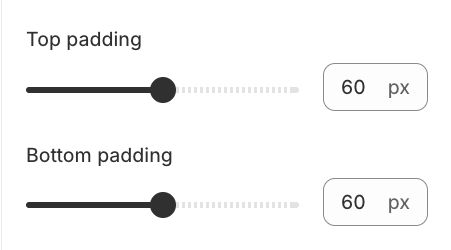
| Top padding | 0 - 27 |
| Bottom padding | 0 - 27 |
| Dividers | None Top only Bottom only Both |
| Force dividers full width | |
| Color scheme | Default Inverse Soft Accent Accent inverse Overlay Color scheme 1 Color scheme 2 |
| Anchor ID | Link directly to the section on any page. Learn more |


