> For the complete documentation index, see [llms.txt](https://help.fluorescent.co/llms.txt). Markdown versions of documentation pages are available by appending `.md` to page URLs; this page is available as [Markdown](https://help.fluorescent.co/stiletto/pages/header/logo.md).
# Logo
Replace the store title with a custom logo image. We recommend a logo image with a transparent background and a minimum width of 50px in PNG format.
{% hint style="info" %}
Looking to design your own logo? Give [Shopify's Hatchful logo creator](https://hatchful.shopify.com/) a try.
{% endhint %}
STEPS
In your theme editor (**Customize**):
1. Click on the **Header** section to open the section settings.
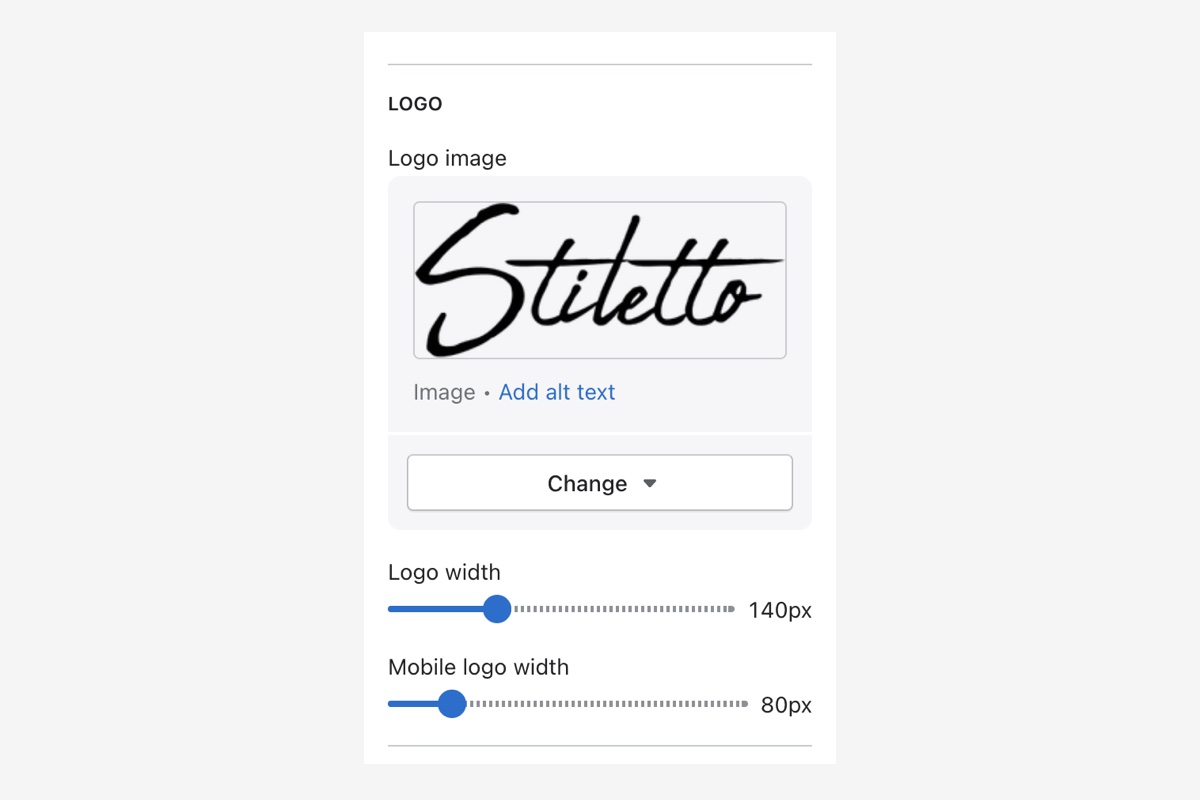 2. Under **Logo**, click **Select image** and use the file selector to select or upload your logo file.
> We recommend using a logo with a transparent background (PNG format).
3. Use the **Logo width** slider to make your logo larger or smaller on either desktop or mobile.
> We recommend using the original pixel width of your uploaded image.
4. Click **Save**.
2. Under **Logo**, click **Select image** and use the file selector to select or upload your logo file.
> We recommend using a logo with a transparent background (PNG format).
3. Use the **Logo width** slider to make your logo larger or smaller on either desktop or mobile.
> We recommend using the original pixel width of your uploaded image.
4. Click **Save**.
Click Header section to find settings
| Setting | Description |
| ------------------------------------------- | ------------------------------------------------------------------------------------------------------------------------------- |
| Logo image | Upload a PNG image to display as your store logo in the header. The name of your store displays when no logo image is uploaded. |
| Logo width | Increase or decrease the width of your logo image measured in pixels. The logo height will change to match the width. |
***
> **Related links**
>
> [Header](/stiletto/pages/header.md)